
Start with the limit shown for your actual account
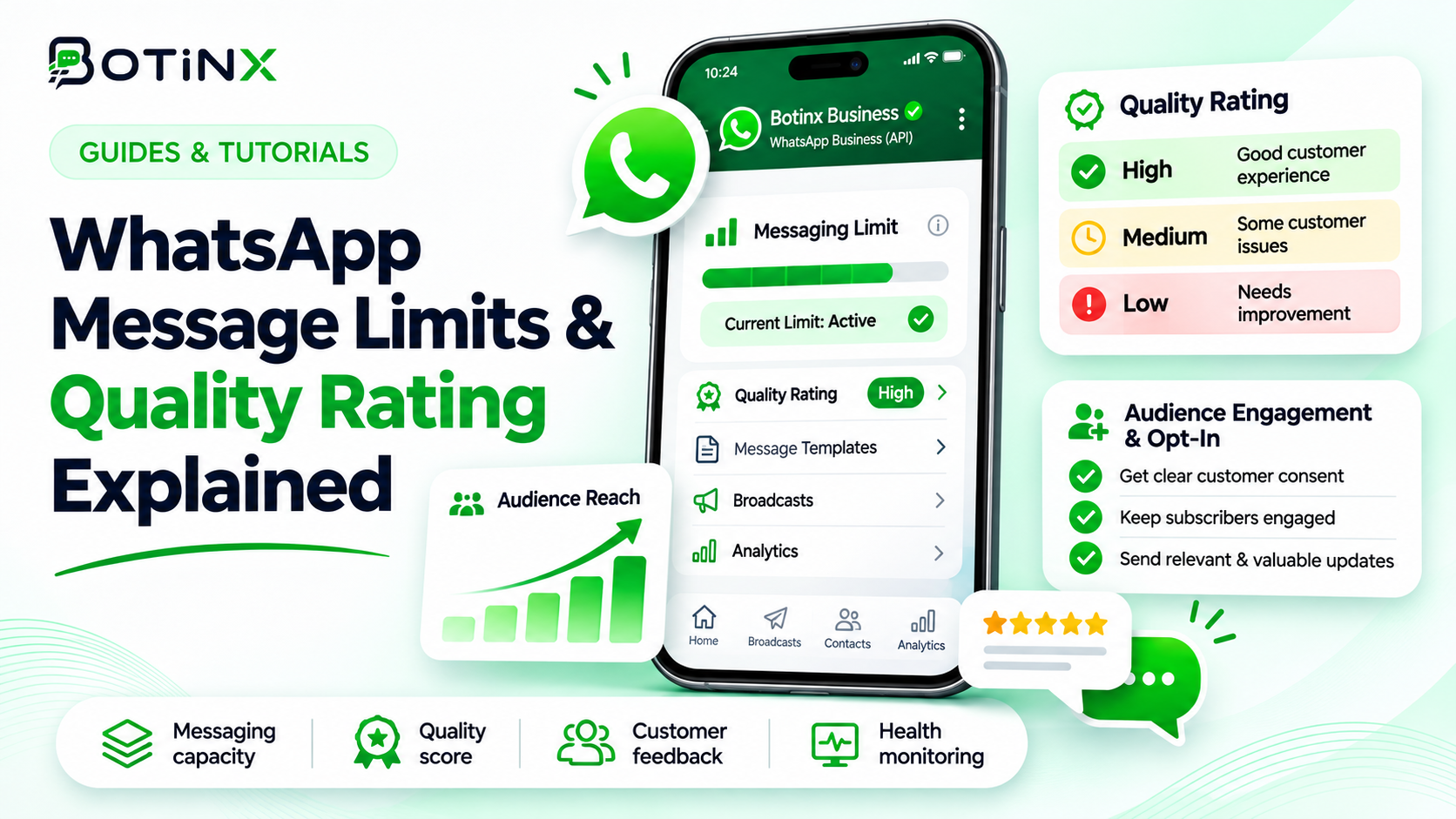
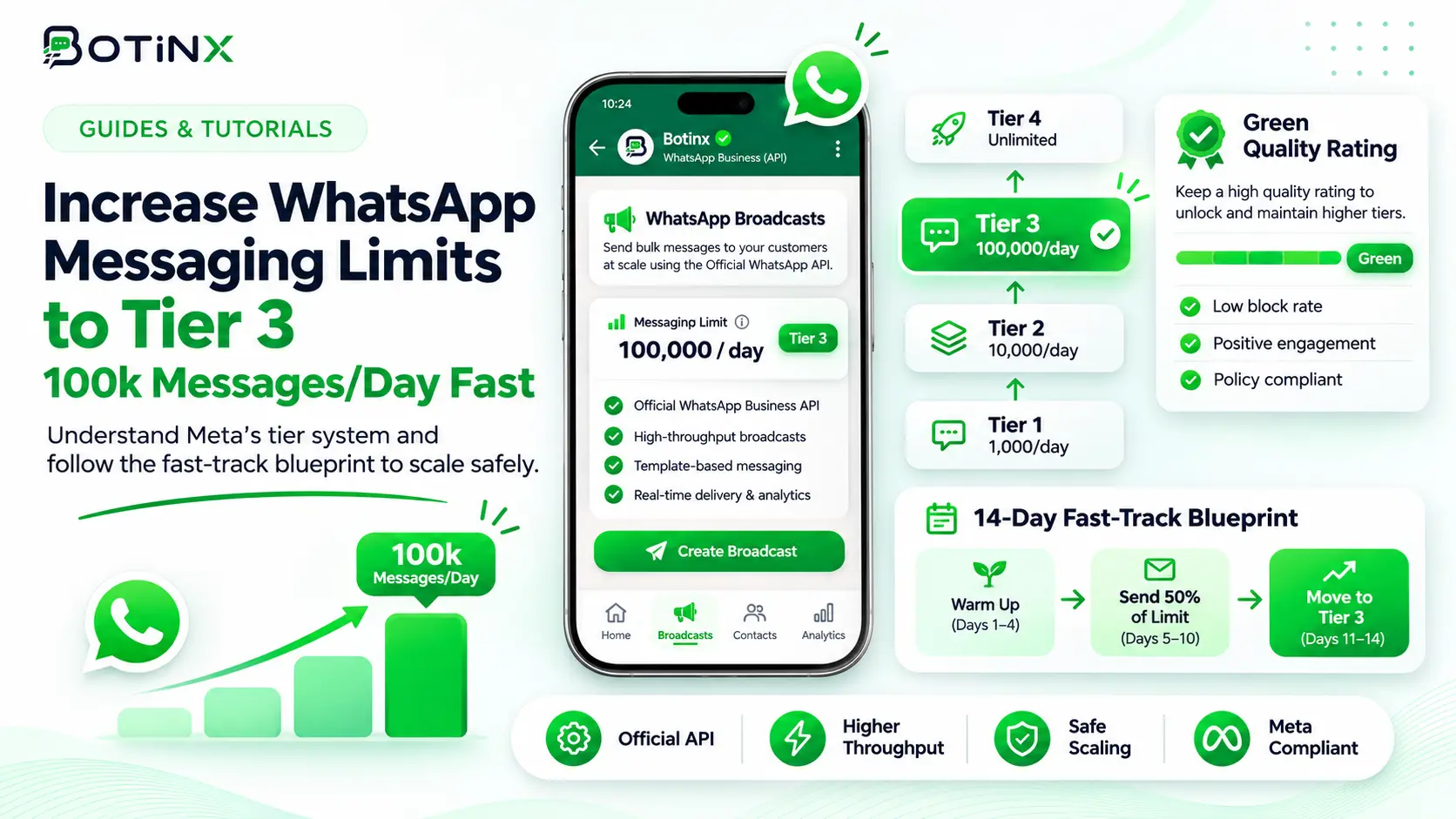
WhatsApp messaging capacity is controlled by Meta and should be checked in the current account interface. Do not plan a campaign solely from an old article describing “Tier 1,” “Tier 3” or a fixed starting allowance. Limits, eligibility and the scope at which they apply can change.
Use Botinx campaigns alongside WhatsApp Manager to understand your current sending position. No provider can promise that every business will reach a specific limit in fourteen days. The useful goal is to operate reliably within the account's available capacity and maintain a customer experience that supports healthy messaging.
Distinguish capacity, throughput and delivery
A messaging limit, the speed at which API requests can be processed and whether a recipient receives a message are different constraints. Increasing request throughput does not necessarily increase the number of eligible recipients your business can contact. Nor does a larger account allowance guarantee delivery to every recipient.
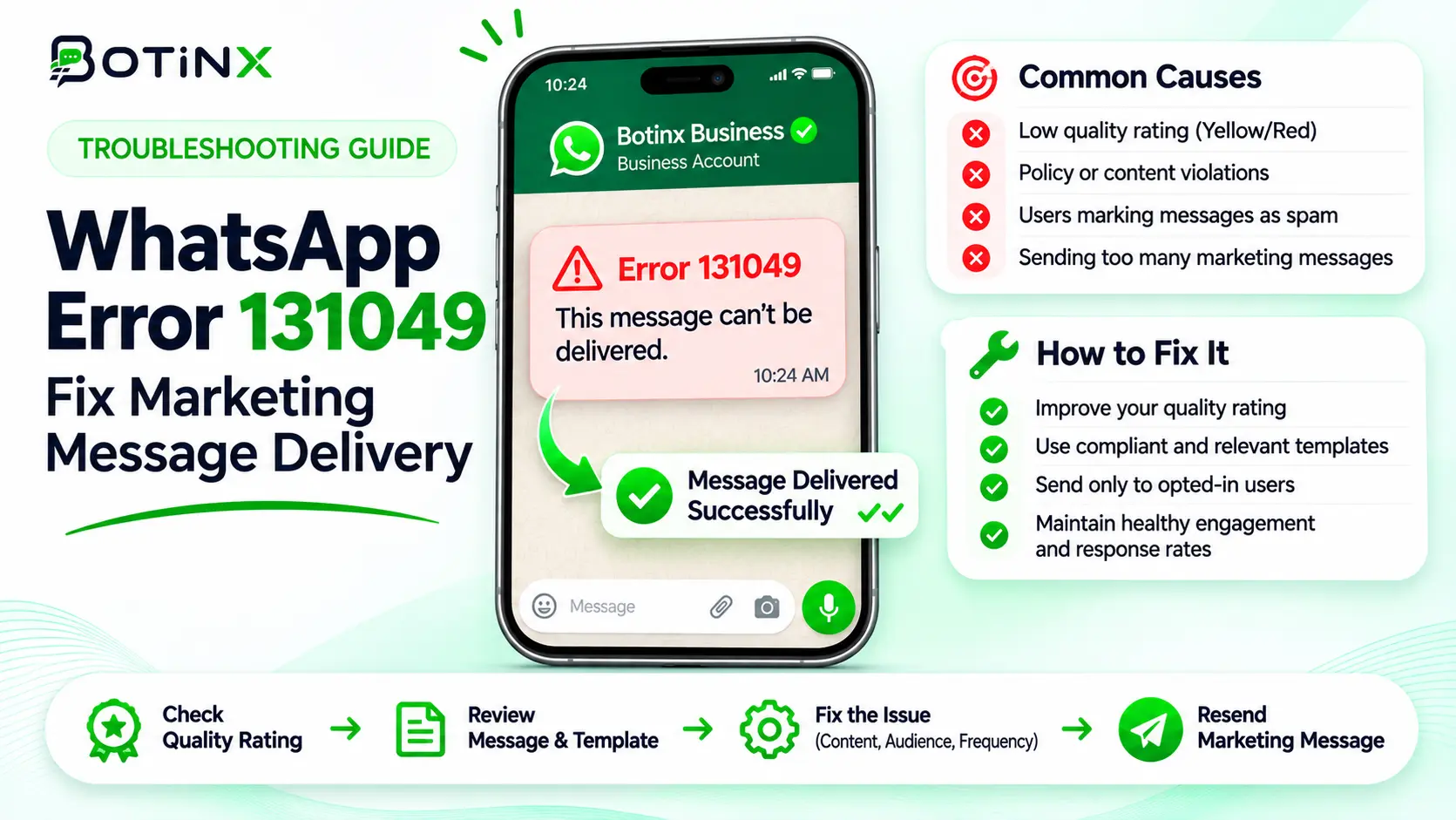
Record the precise restriction shown in your account or error response. Is the issue the sender's capacity, a template status, recipient eligibility, billing or a temporary service problem? Treating all failures as “the limit” can lead to incorrect retries and support requests. Keep timestamps and relevant identifiers to make the problem diagnosable.
Review verification and account readiness
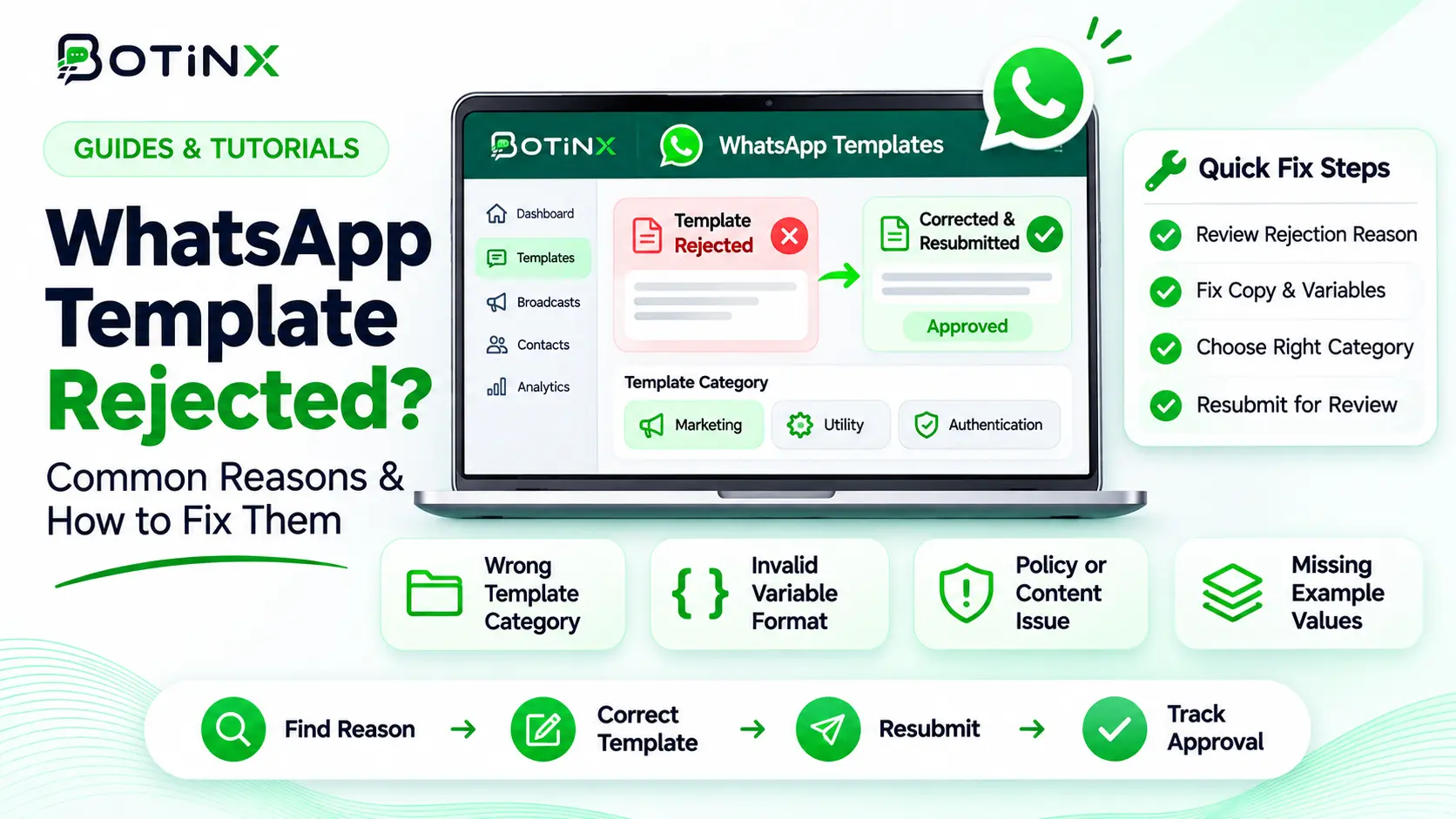
Check the current requirements presented in WhatsApp Manager for your account. Confirm business-asset ownership, number status, any requested verification and billing readiness. Resolve missing information through the documented account process rather than following a generic shortcut from an old guide.
Business verification, display-name review and public verification badges are separate concepts. Completing one does not automatically establish every other status or a particular sending allowance. If the account appears eligible but remains restricted, gather the relevant status information and use the authorized support route. Avoid creating unnecessary replacement accounts as a way to evade restrictions.
Improve message quality through relevance
Send to people who expect the communication and make the reason for contact clear. Segment the audience, keep the promise made at signup and honor opt-outs. Review negative feedback by campaign and source so a problematic imported list does not affect all messaging activity.
Do not send unnecessary messages simply to satisfy a rumored volume threshold. Artificial volume can create complaints without providing customer value. A controlled campaign should have a genuine business purpose and an audience that benefits from it. Read the permissioned broadcast guide for a practical launch and monitoring checklist.
Plan campaigns around available capacity
Before scheduling, compare the eligible audience with current account capacity and other planned workflows. Order updates, sales follow-ups and broadcasts may share operational resources even when different teams own them. Coordinate sending so an important customer workflow is not unexpectedly crowded out.
If the audience exceeds available capacity, prioritize the most relevant segment or revise the schedule within applicable rules. Do not rotate numbers or accounts to bypass restrictions. Set an operator alert for failures and have a clear pause procedure. A smaller successful campaign is better than a larger launch that generates unresolved errors and customer confusion.
Investigate a stalled increase systematically
Record the current limit, relevant account status, template status and recent failure patterns. Check whether the displayed requirement is complete and whether there are unresolved account issues. Use the current Meta documentation rather than assuming that an older percentage-of-volume rule applies to every account.
If support is needed, provide a concise description of the expected and observed behavior with timestamps. Do not include credentials or unnecessary customer data. Keep the existing workflow within its authorized capacity while the issue is reviewed. Repeatedly resubmitting messages or changing providers without understanding the restriction may add complexity without resolving the cause.
Separate scaling success from vanity volume
Track useful conversations, successful transactions, failure causes and opt-outs alongside the available limit. A larger allowance is only valuable if your business can use it responsibly and staff the resulting responses. Increasing volume while reducing relevance can damage both customer experience and unit economics.
Review the cost optimization guide before expanding. Estimate spend with current rates and consider peak reply workload. Agree on a stop condition for unexpectedly high failures or negative feedback. Capacity planning should include both the messaging platform and the humans who support customers after messages arrive.
Common questions and official checks
Does a “100k” label mean unlimited messages to everyone? Read the actual definition and scope shown for the account. Do not confuse recipients, messages and API throughput.
Can Botinx guarantee an upgrade? No. Meta controls eligibility and capacity. Botinx can help you operate and inspect your messaging workflow.
Where is the authoritative guidance? Check Meta's messaging-limit documentation and the current WhatsApp Manager display. If the documentation or interface changes, use the current account-specific requirements rather than this URL's legacy “tier-3” wording.