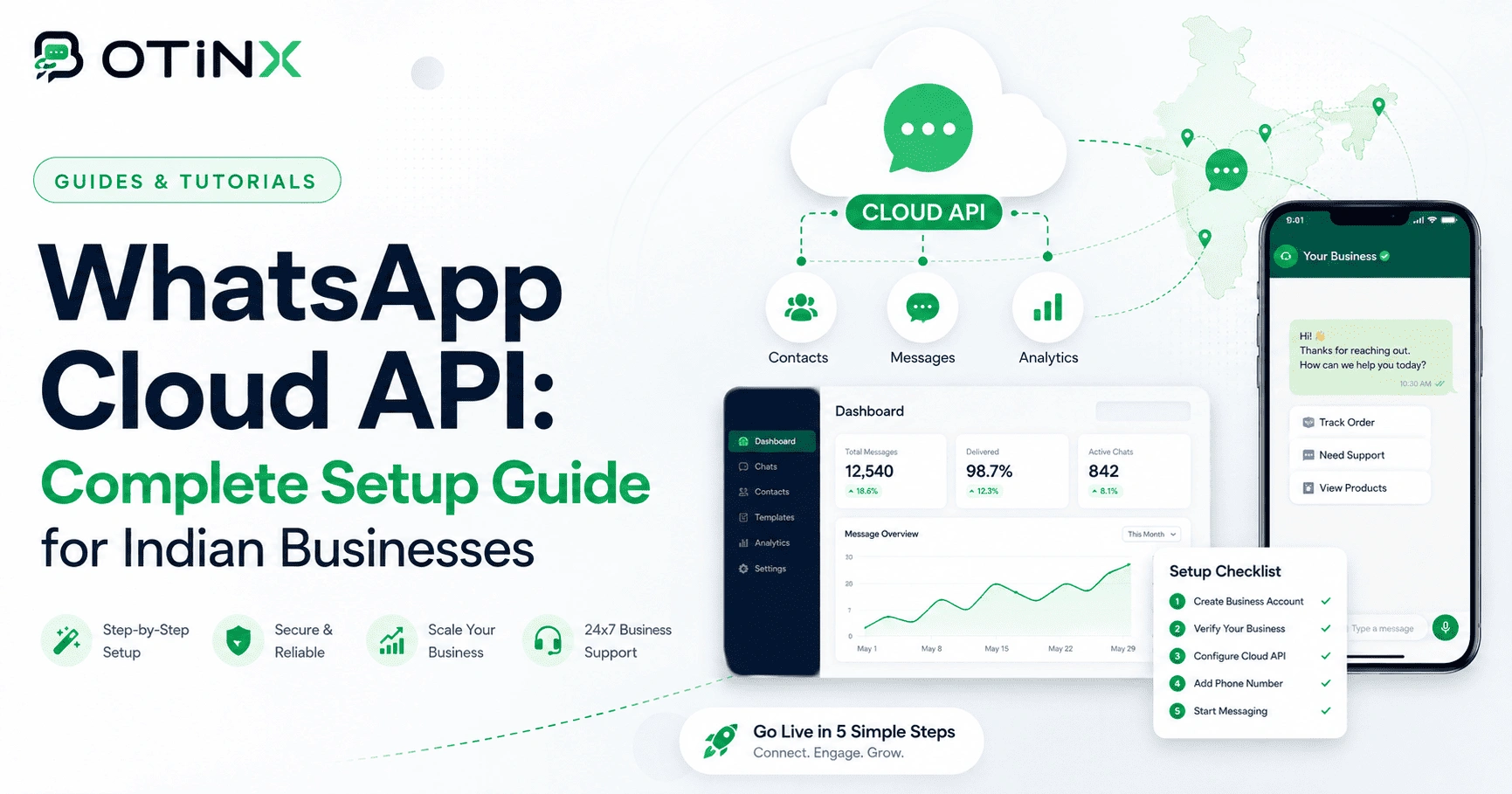
What the WhatsApp Cloud API does
The WhatsApp Cloud API connects business software to WhatsApp messaging. It lets an application send supported messages and receive events such as incoming replies and delivery updates. The API itself is not a complete support desk or marketing dashboard; your chosen software supplies those operational tools.
For an Indian business that wants campaigns and customer conversations together, Botinx provides a practical starting point. Decide whether you want a managed dashboard or a custom engineering integration before onboarding. That decision determines who will own credentials, event handling, templates and troubleshooting after the number is connected.
Prepare accounts, access and business information
Identify the Meta business portfolio your company controls and ensure the person onboarding has the necessary permissions. Keep your legal business name, website and contact details consistent. Meta may request business documents or additional verification depending on the account and features involved; do not assume every business follows an identical approval path.
Confirm access to the phone number for the required verification process. Review whether the number is currently used in the Business App, another provider or an existing API account. Record who owns the number and portfolio. Using an employee's personal account as the only administrator creates avoidable continuity problems when that employee leaves.
Choose coexistence or a planned migration
If the number is already used in the WhatsApp Business App, check eligibility for coexistence before making changes. Eligible businesses can use supported app and API capabilities together, but onboarding availability and synchronization behavior require verification for the specific account.
If a migration is needed, document the existing provider, access rights, expected interruption and data-export requirements. Back up business records you are entitled to retain and test the destination workflow. Do not delete an existing WhatsApp account as a routine first step. Follow the current onboarding instructions for your chosen connection method and ask support to resolve unclear eligibility.
Connect the number and verify the first conversation
In your platform's connection flow, select the correct business assets, complete the required permissions and finish number verification. Confirm the displayed sender number before creating a campaign. If the flow shows an unexpected portfolio or account, stop and correct the selection rather than trying to compensate later.
Use an internal test recipient to check both directions: a customer message should arrive in the inbox, and an authorized response should reach the device. Check delivery status as well as the visible message. Verify that replies go to the intended business workspace, especially if your company manages several brands or locations.
Configure templates, permissions and billing
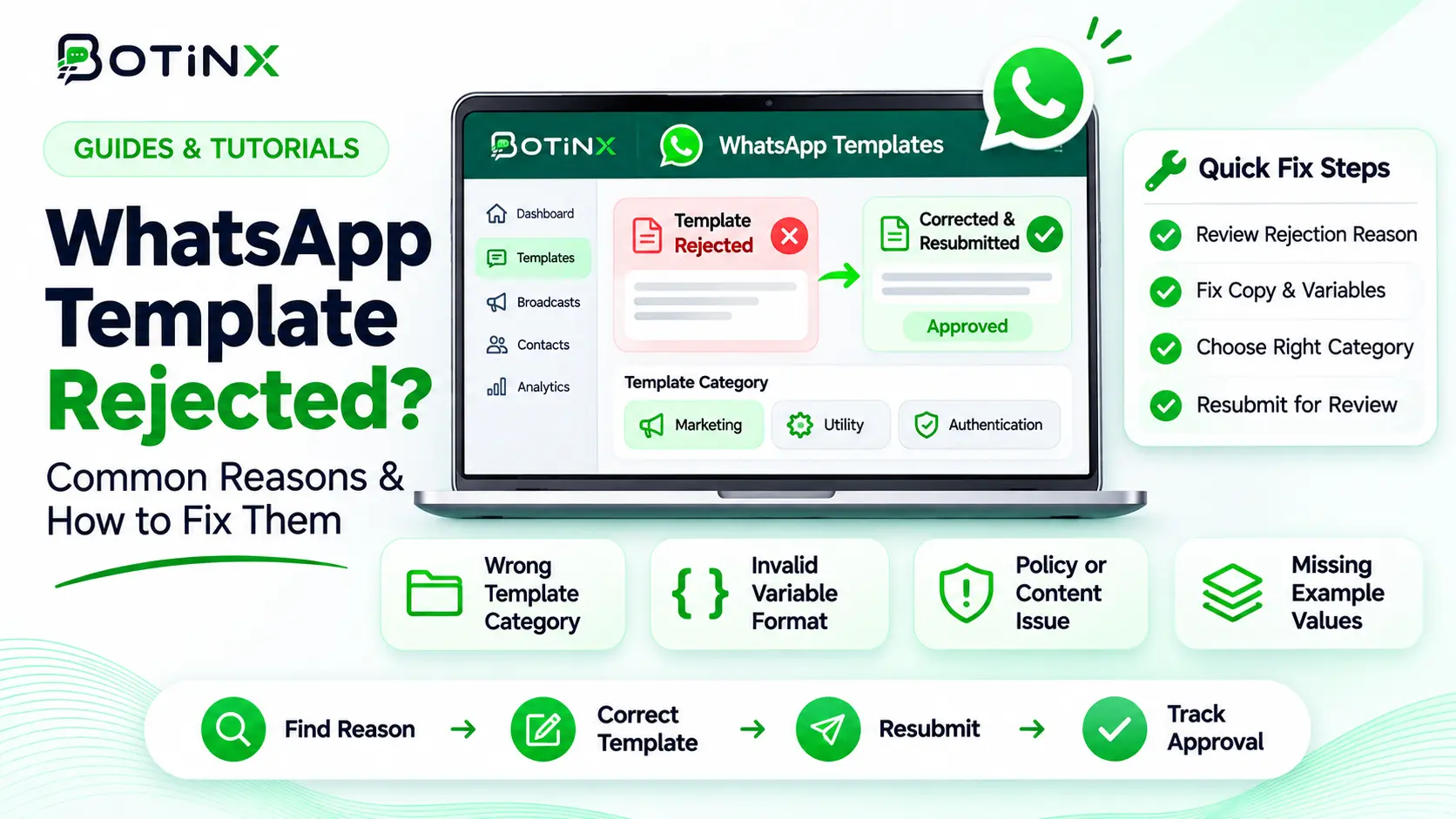
Create templates for real use cases such as an order update or an opted-in promotion. Supply representative variable values and choose a category consistent with the message. Template approval does not mean the content can be sent to everyone; the audience still needs to be appropriate for the communication.
Check billing readiness and current fees before production use. Restrict dashboard access by role and keep API credentials out of public pages, browser code and chat messages. For a custom integration, validate incoming webhook requests, handle duplicate events and monitor failed deliveries. These responsibilities remain important even when a managed platform handles most of the infrastructure.
Test the cases that commonly break a launch
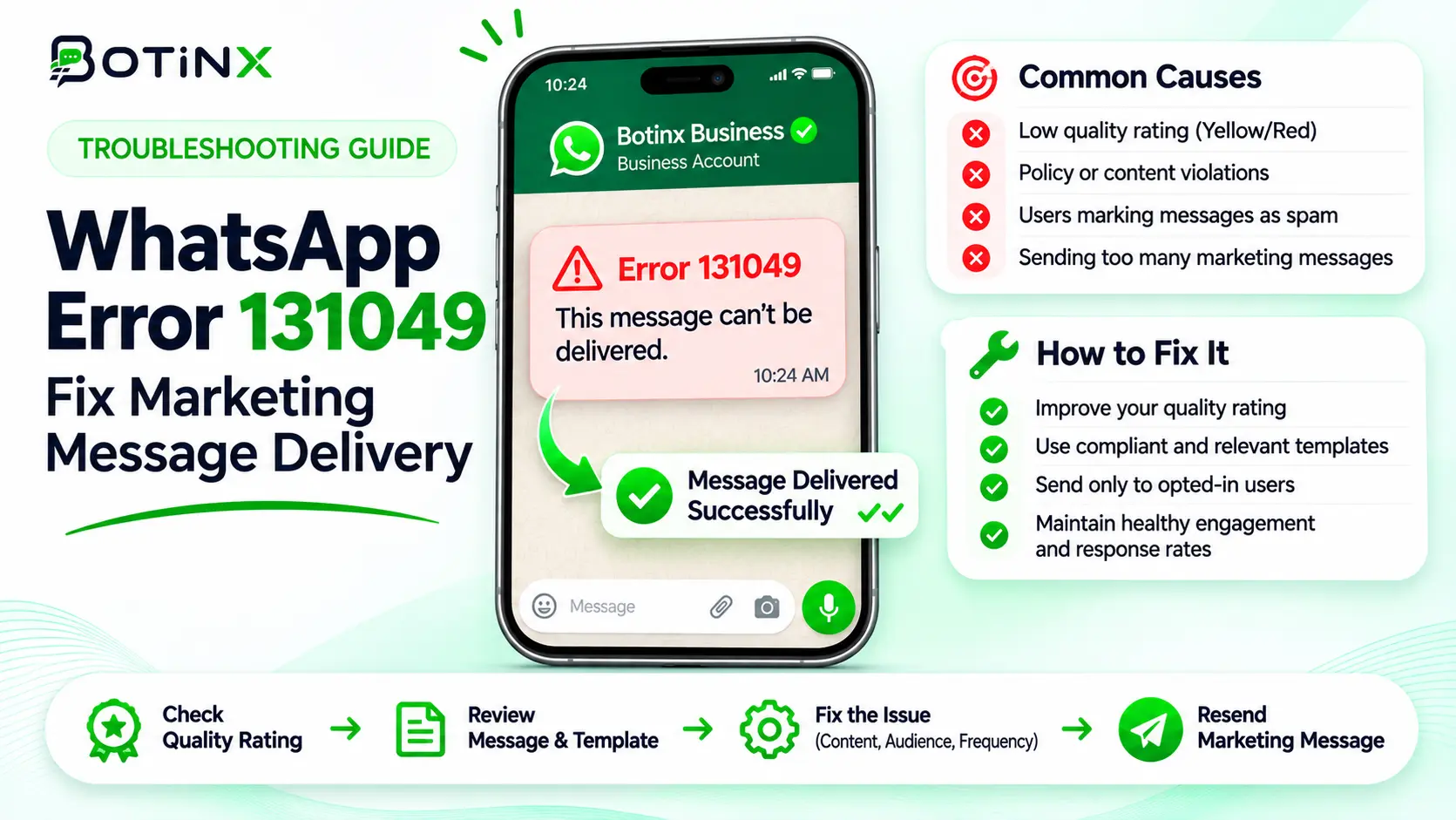
Create a small acceptance checklist: valid inbound message, outgoing template, missing variable, invalid recipient, repeated event, opt-out, human handover and expired conversation window. An expired window may require an approved template; it should not cause the application to silently drop a customer's request or invent a delivery success.
Assign ownership for errors. The marketing team can correct message content, an administrator can resolve access or billing, and an engineer or provider may need to investigate integration failures. Save timestamps and event identifiers when reporting a problem, while keeping personal customer information out of public support threads.
Costs and a sensible first launch
Budget separately for software, messaging usage and any custom integration work. The total depends on your destination markets, message categories and provider terms. Use the WhatsApp pricing guide to create an estimate instead of relying on a single advertised monthly price.
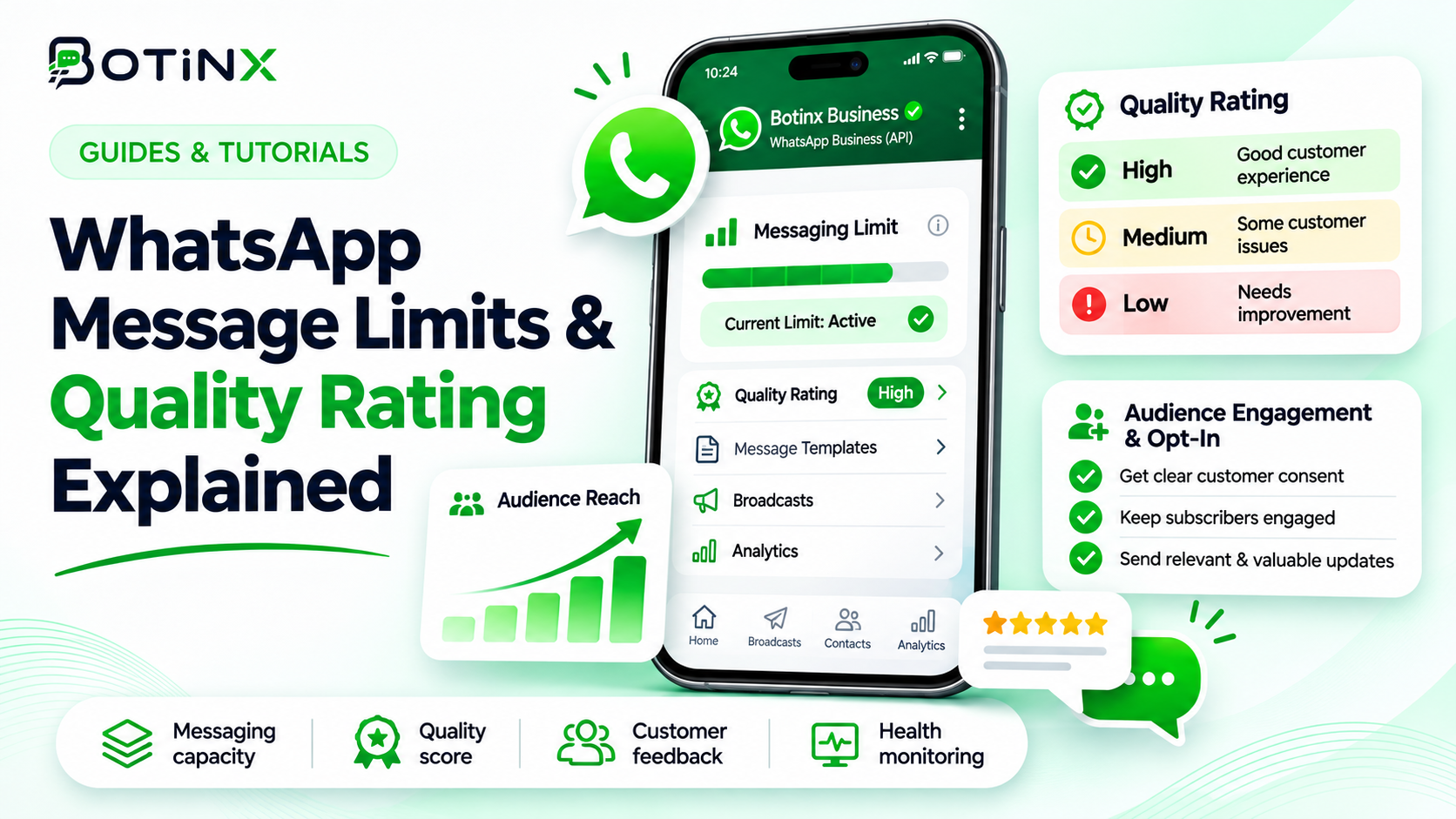
Start with one workflow and a small permissioned audience. Confirm that a team member can take over a conversation and that an opt-out prevents later promotions. Once the full journey works, increase volume in line with your account's current limits and customer feedback. A working connection is the beginning of a production rollout, not the end of testing.
Setup questions and official references
Is a new number always required? No. The right route depends on the number's existing registration and eligibility.
Is business verification the same as a verification badge? No. Account verification, display-name approval and public badges are separate concepts.
Can onboarding always finish in five minutes? No. Access problems, number ownership and reviews can take longer. Refer to Meta's developer onboarding documentation, the messaging policy and Botinx support for the applicable next step.