Steps to apply for WhatsApp Business API
5 min. read • Last updated: 07-April-2025
You must have a WhatsApp Business API account to get access to WhatsApp Broadcasting & all other Botinx features.
That is why you must apply for the WhatsApp Business API.
Following are the pre-requisites you must meet in order to apply for the WhatsApp Business API:
- A BUSINESS WEBSITE: A Business Website is a must to get access to the WhatsApp Business API.
- A FRESH PHONE NUMBER: You need an active phone number that is not currently registered with any of the WhatsApp accounts.
You can use an old phone number too, but you will have to permanently delete the WhatsApp App/Account active on it.
Here’s how you can delete your old WhatsApp Business mobile number before applying for the API:
- Open WhatsApp
- Tap More Options (three dots) > Settings > Account > Delete My Account
- Enter your phone number in full international format and tap DELETE MY ACCOUNT
- Select a reason for deleting your account from the dropdown
- Tap DELETE MY ACCOUNT
Once you have these things ready, you are set to apply for WhatsApp Business API. You can either follow the steps below.
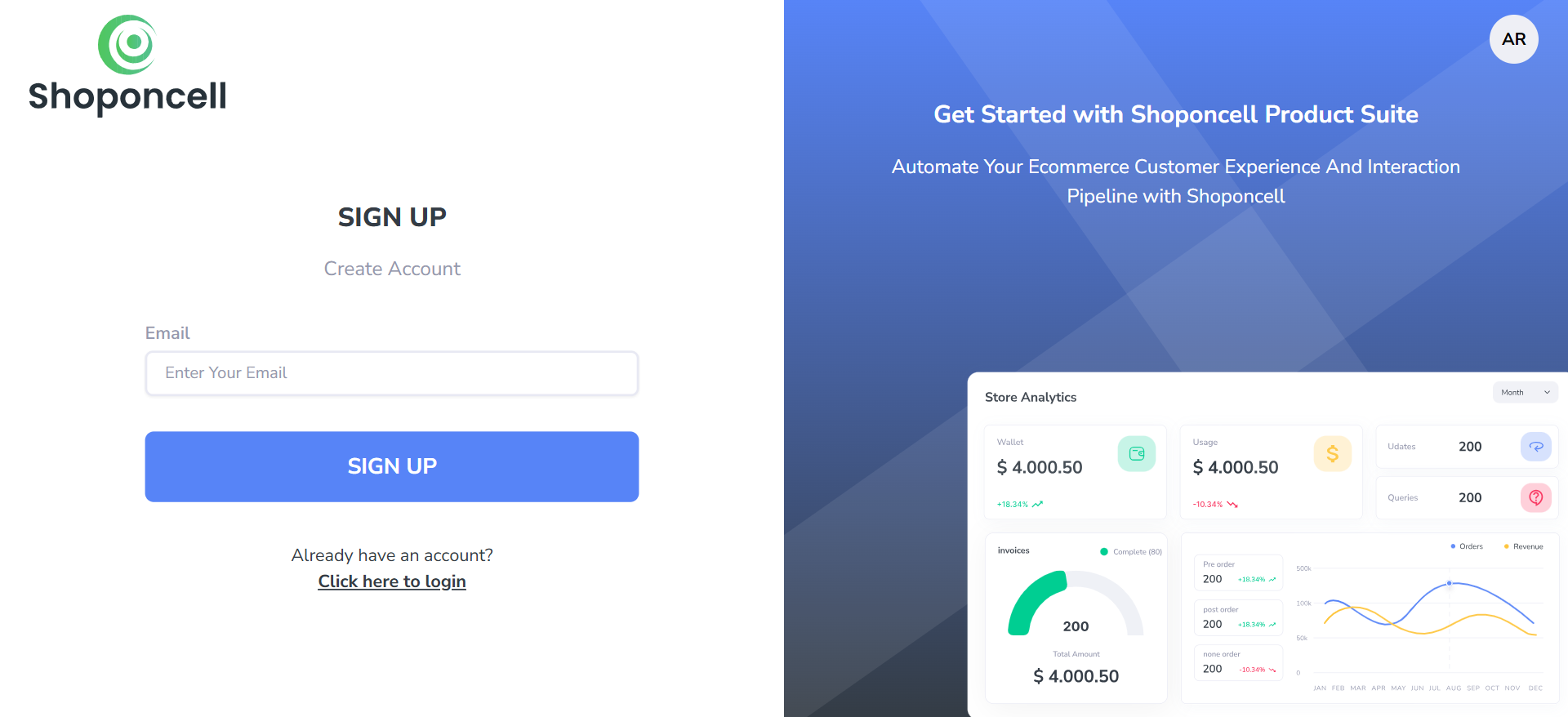
- Signup on the Botinx App: Go to the Signup Page.
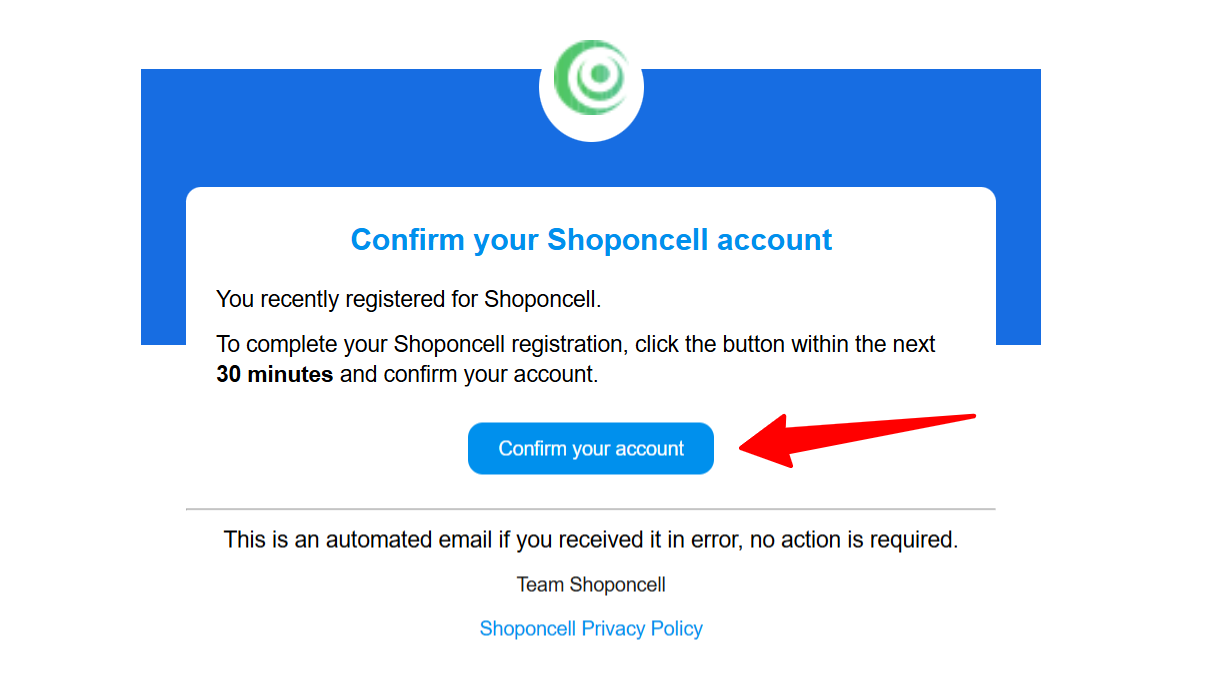
- Email Verification: A verification link will be sent to your registered email address. Click on the Confirm your account button to verify your email.
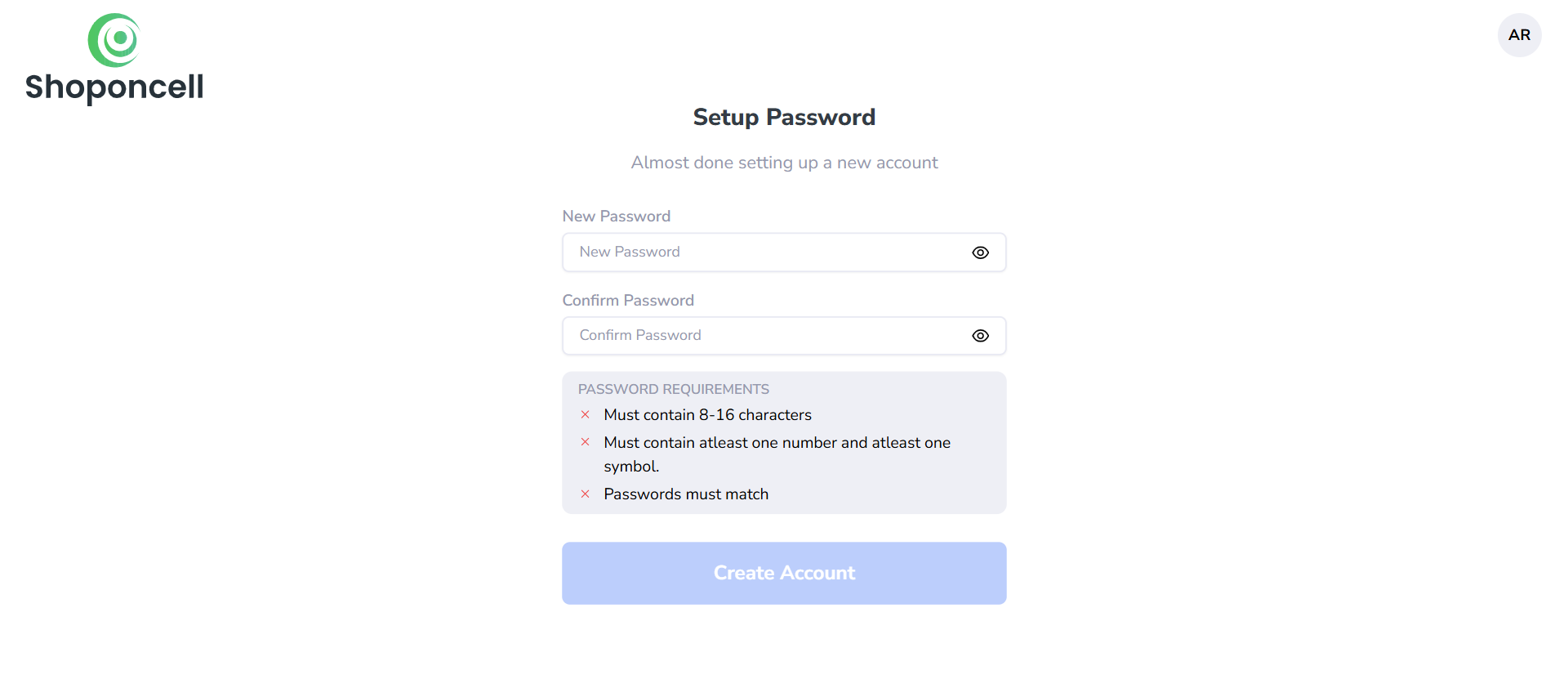
- Setup Password: Create your password to sign in to the app.
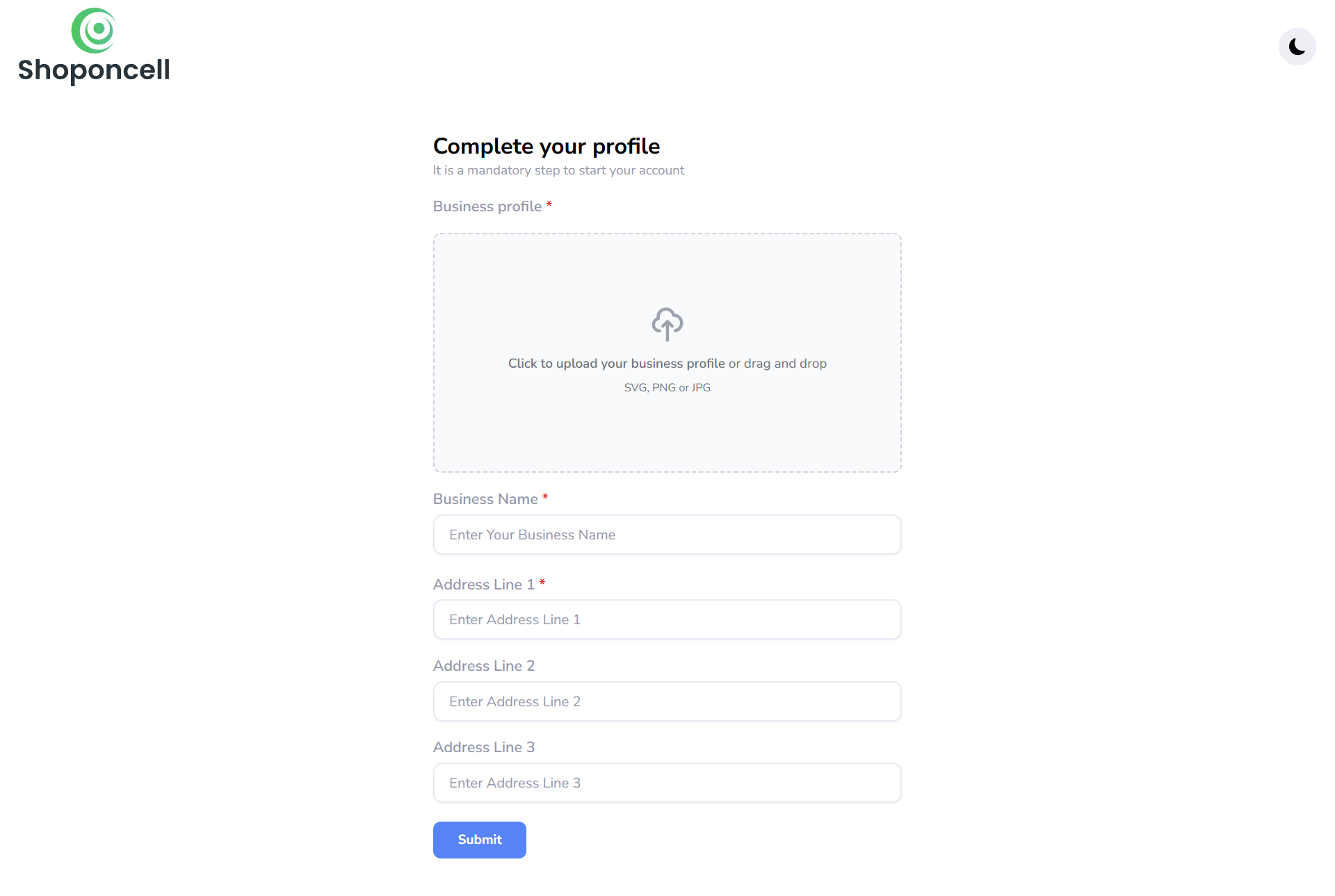
- Complete your profile: Upload your brand logo, fill in the Business Name and address, then click the Submit button.
- Click Continue with Facebook:
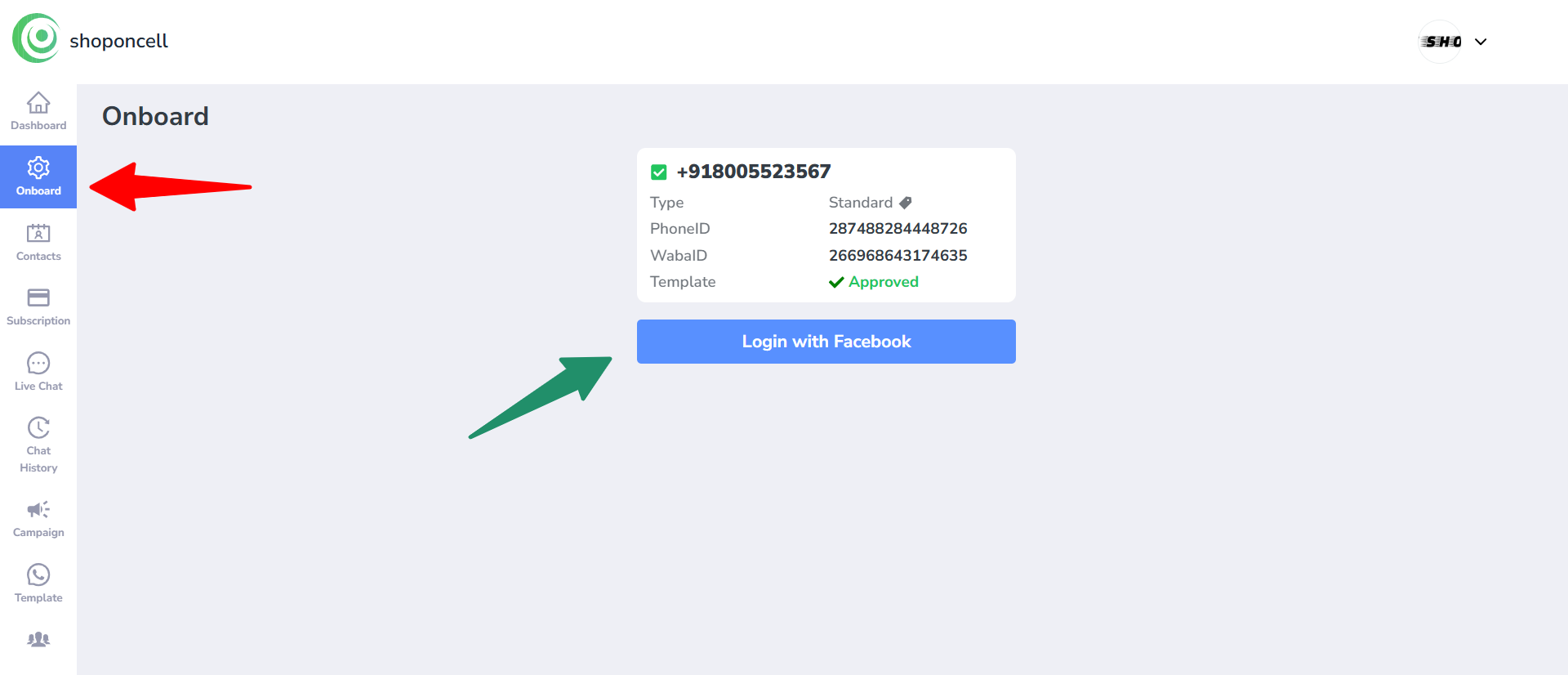
Click the “Continue with Facebook” button to start the application process for procuring the WhatsApp Business API.
Make sure you have admin access to your Facebook Business Manager account to proceed.
Note: Ensure your Facebook Business Manager account is verified to gain full access to the WhatsApp Business API. You can verify it either during or after the application process. - Click Continue:
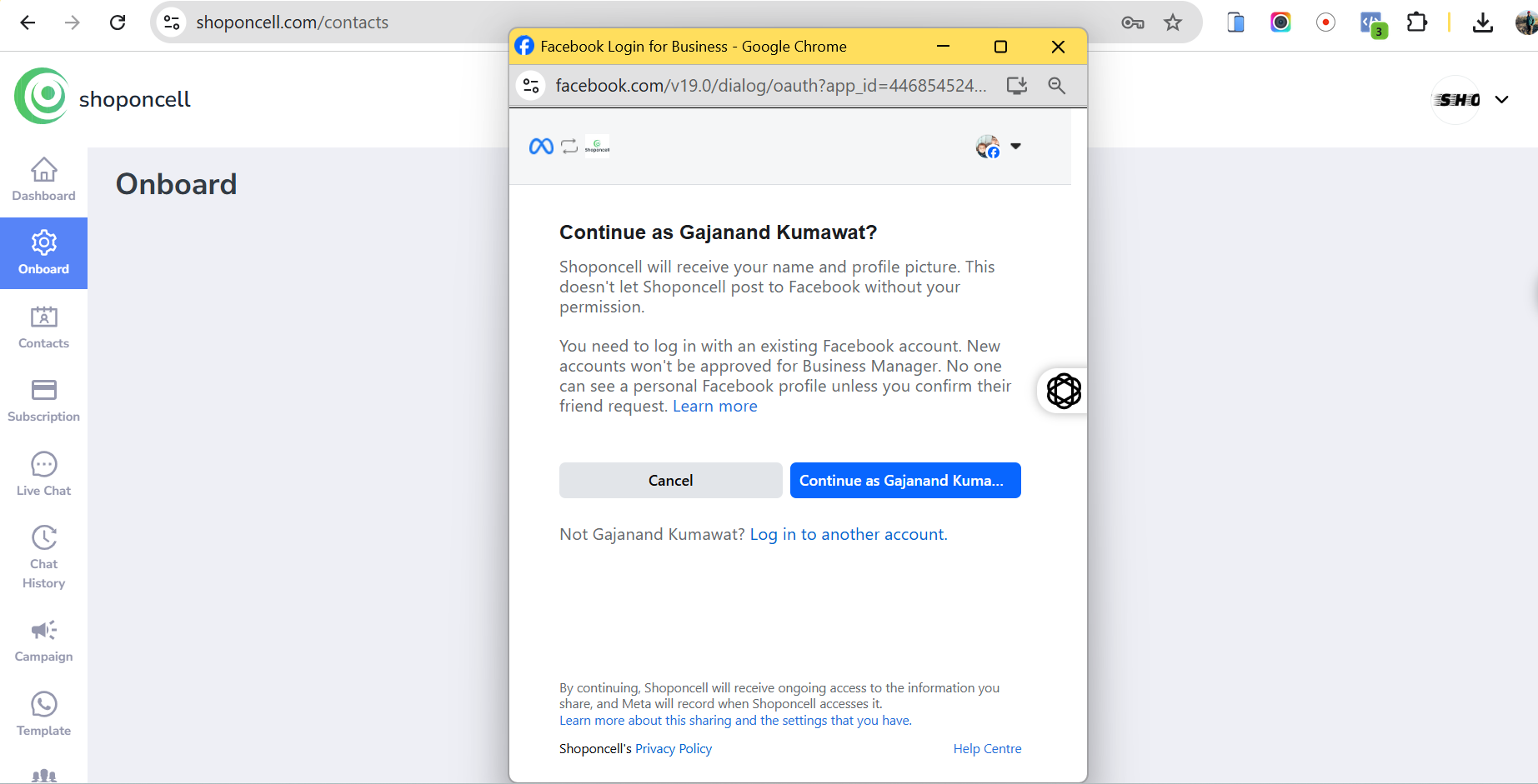
Clicking the button will redirect you to the Meta window where you can apply for the WhatsApp Business API.
Click on the Continue button to start filling out the WhatsApp Business API procurement application.
- Tap Get Started:
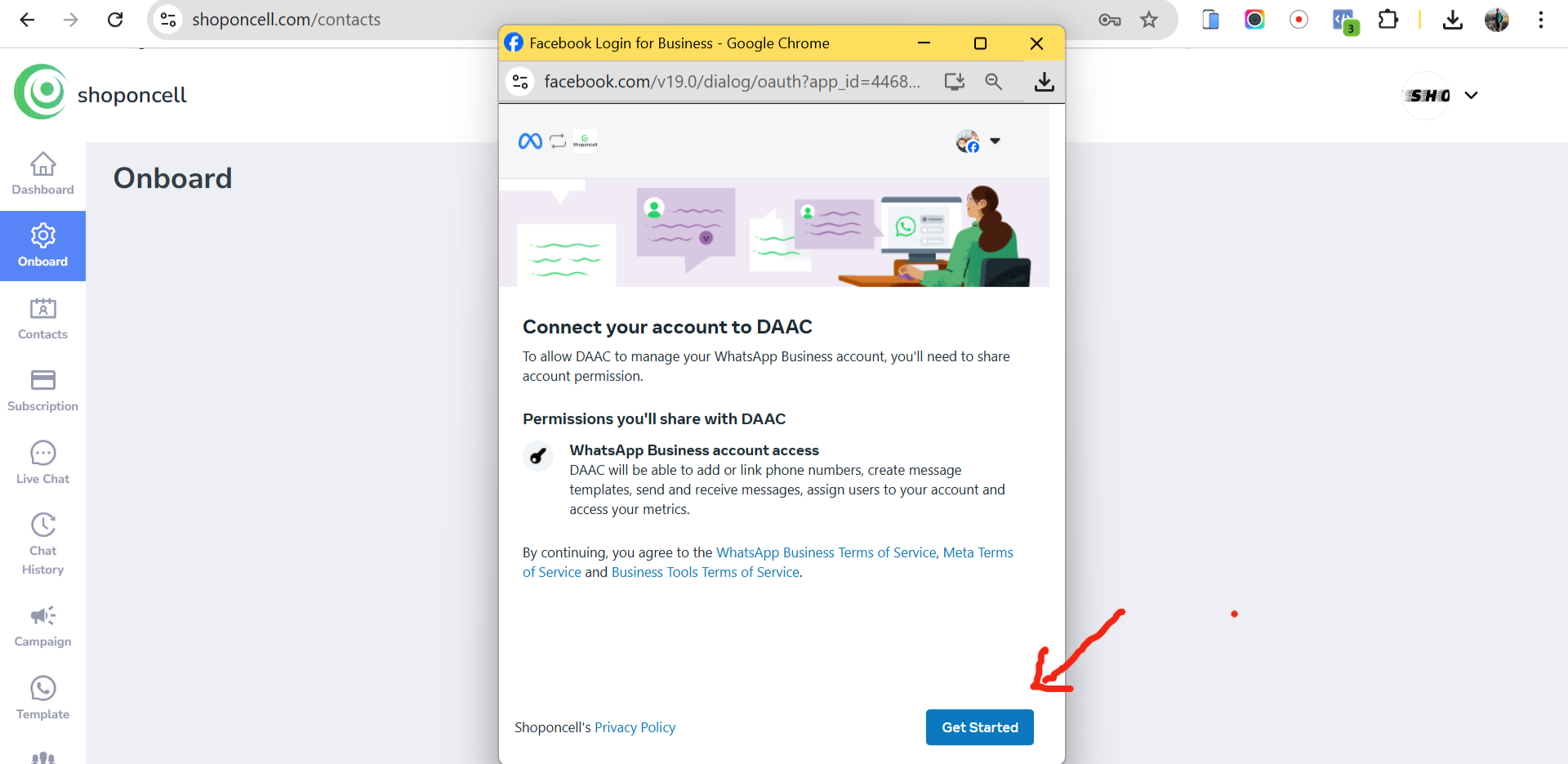
On the next screen, read the permissions shared & click Get Started to connect your Facebook account with Shoponcell..
- Select your Facebook Business Manager Account:
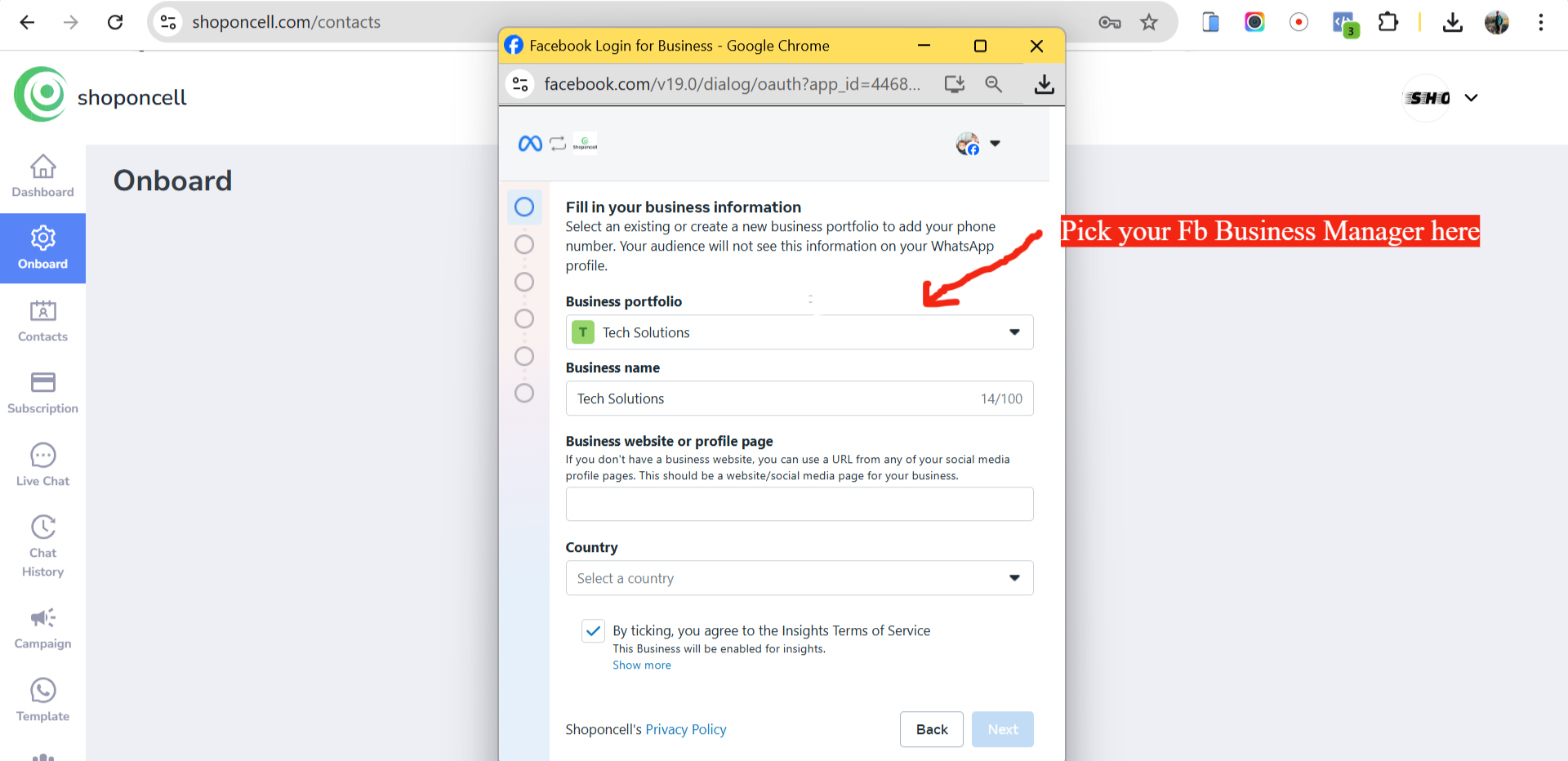
Next, select your Facebook Business Manager Account which you wish to be associated with your WhatsApp Business API Account.
After selecting the one, click Continue.
- Create a new WhatsApp Business Profile.
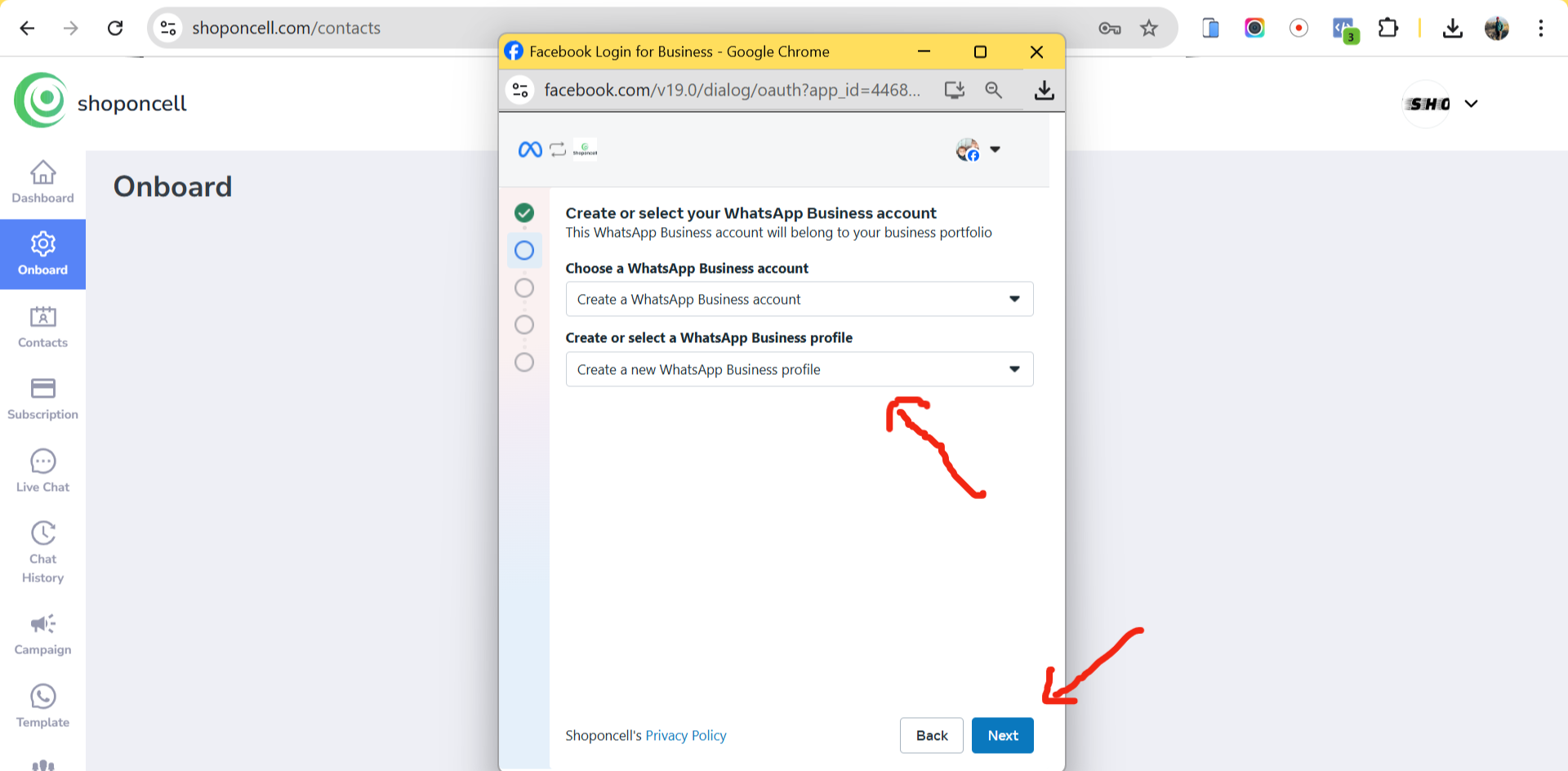
- Add your Business address details
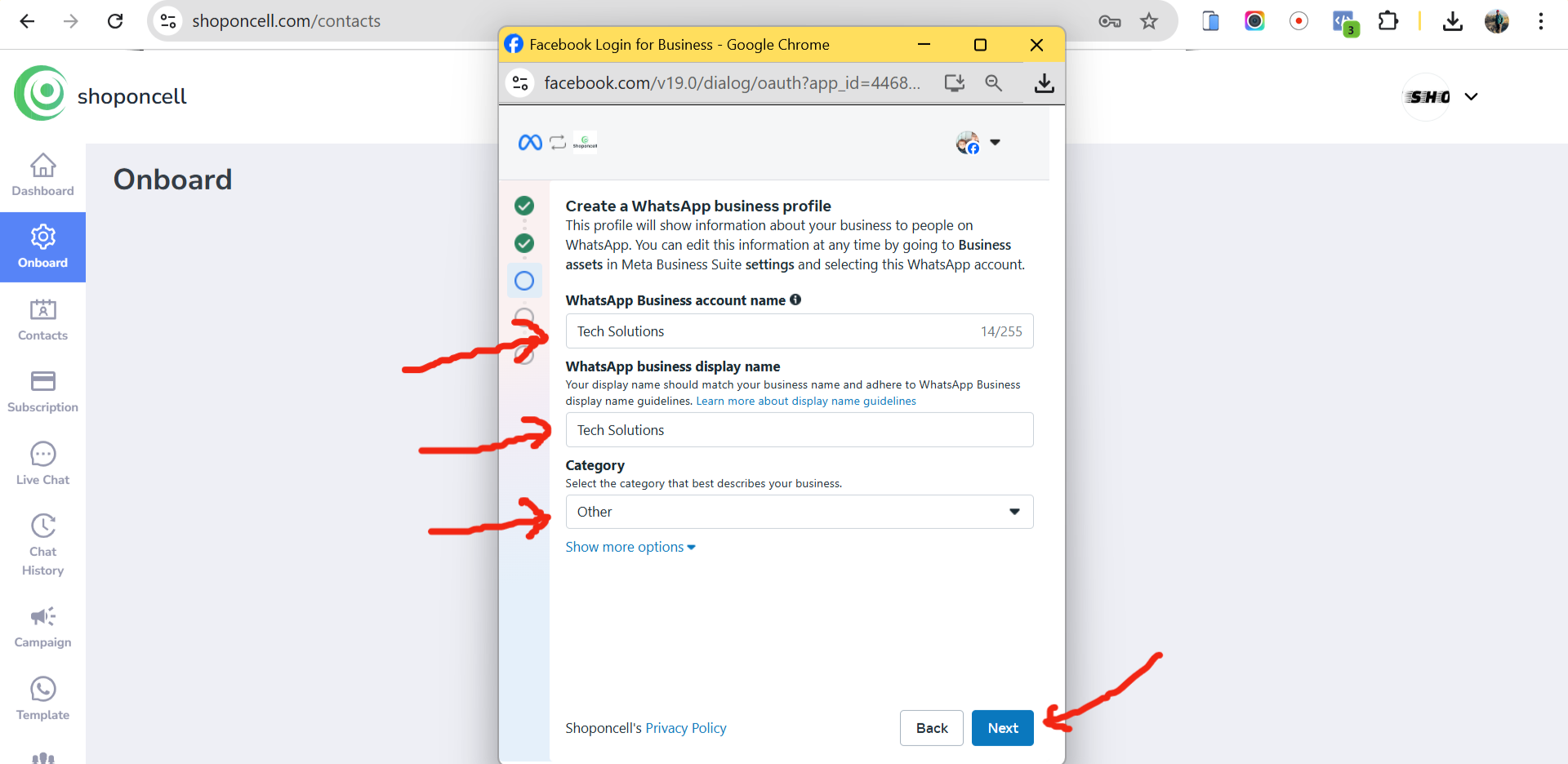
Here, fill in details such as:
WhatsApp Business account name: Now, pick a WhatsApp business account name. This name can be anything related to your business.
*Note - This is not the Display Name you need for your WhatsApp Business API that will be visible to the end users. This is just the name of your WhatsApp Business Account created inside the FB Business Manager.WhatsApp Business Display name: Select a unique WhatsApp Business display name that will show across your WhatsApp business profile. Check out the guidelines on how to pick your display name
Select the Business category: Here, select the industry most relevant for your business.
- Add a new or existing WhatsApp Business API number:

Next, select "Add a new or existing number" and enter the Phone Number on you need to get the WhatsApp Business API. Make sure the number is connected and able to receive code via SMS or Voice for verification.
After adding your number, press Send Code.
- Your WhatsApp Business API Application is now under review:
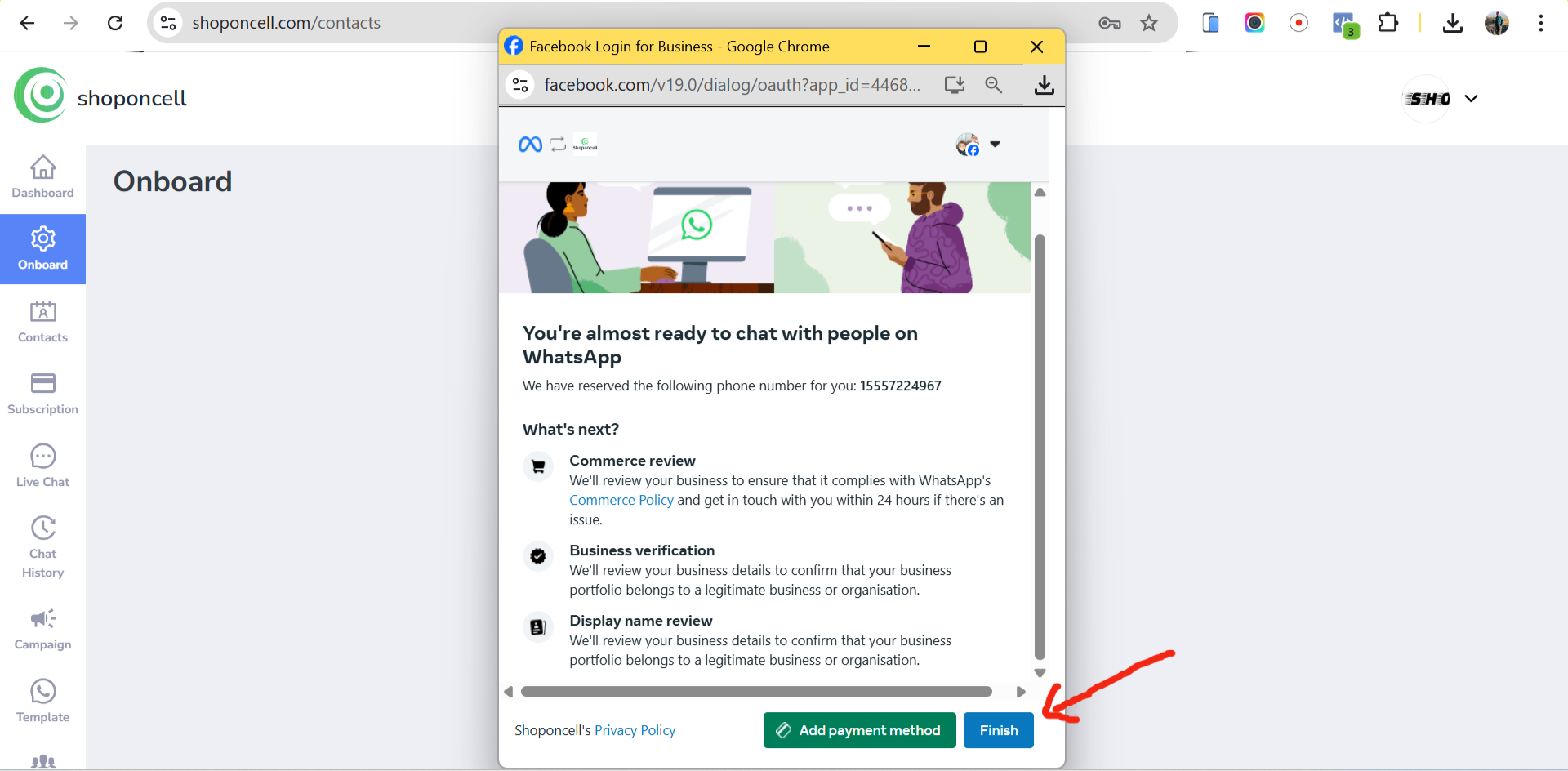
Congratulations! 🎉🎉
If you see the above screen, you have successfully applied for WhatsApp Business API.
You are one step closer to growing your business with Botinx.
The majority of reviews are completed instantly (with 10 minutes) - only the Display Name can take max. 3-4 hours to get approved.
The change will show in the Botinx Platform where the status of WhatsApp Business API will now show LIVE.
Well, that is the complete process you need to follow to apply for WhatsApp Business API.
*NOTE: Please wait up to 24 hours while our backend team reviews your account and activates all payment credit lines.